Orders
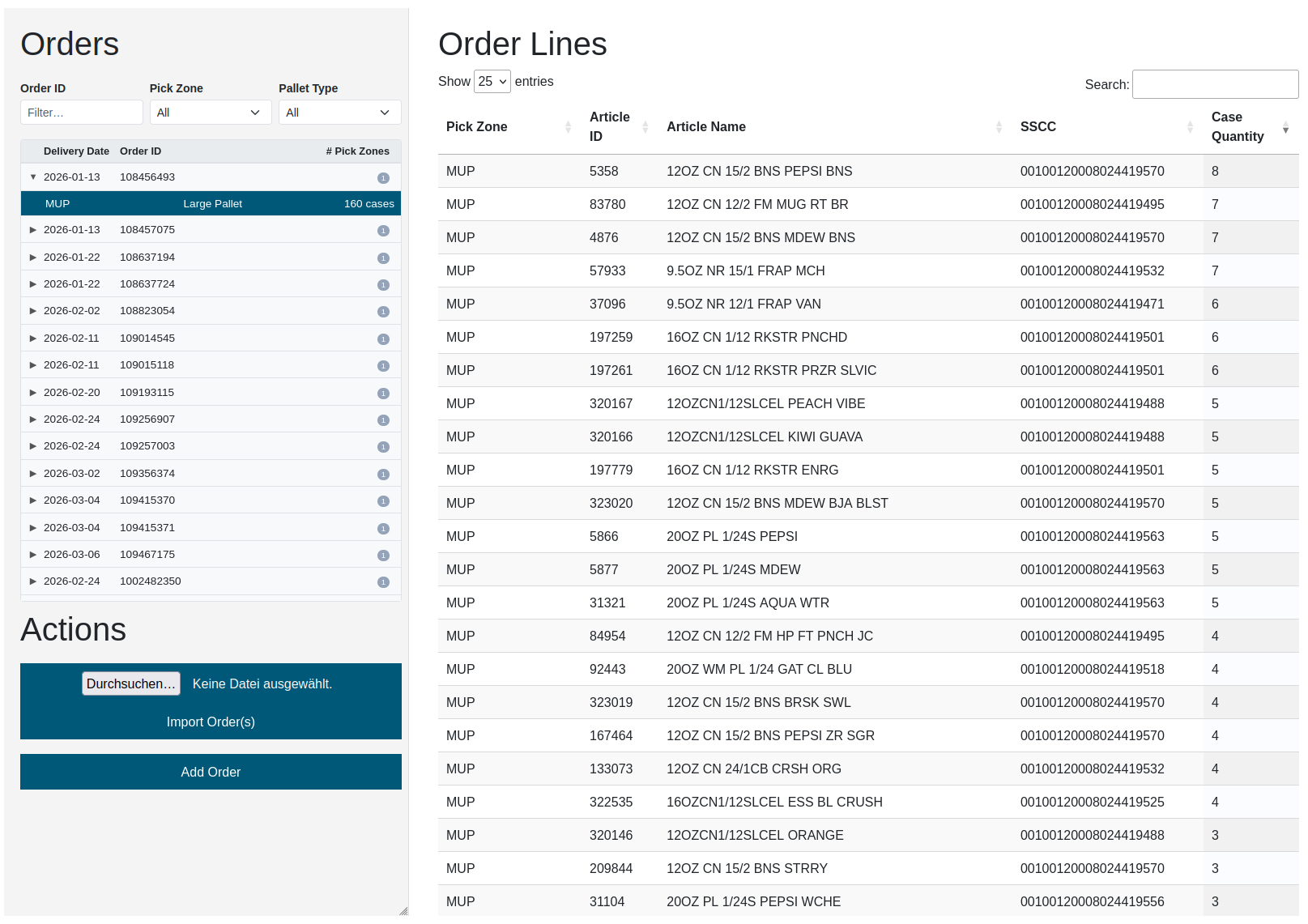
The Orders page allows you to view, create, edit, import, and delete orders. Every order consists of one or more order lines, each referencing an article with a specific case quantity and SSCC code. Once an order is submitted, the palletizing calculation can be triggered and the results retrieved via Palletizing Plans.
Order List
The page is split into a left panel containing the order list as a collapsible tree view, and a right panel showing the order lines of the selected sub-order.
Filters and Sorting
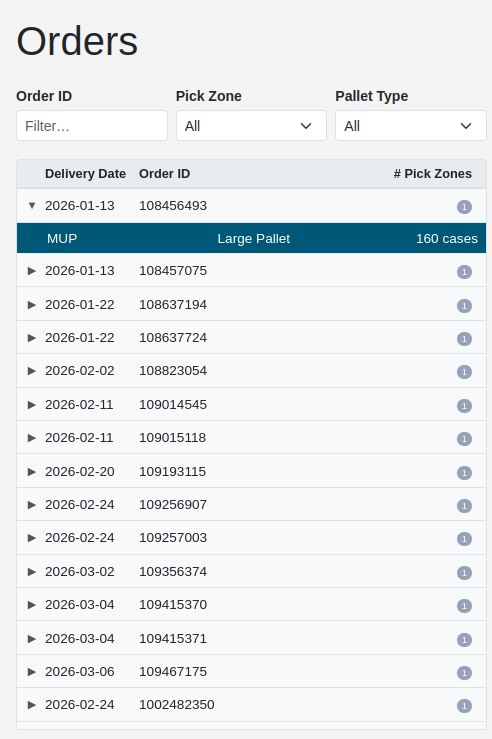
The filter and sort controls above the tree allow quick narrowing and reordering of the list:
| Control | Description |
|---|---|
| Order ID | Free-text filter — shows only orders matching the input |
| Delivery Date | Dropdown — Today, Tomorrow, This Week, Next Week or a specific date via the date picker |
| Pick Zone | Dropdown — shows only orders that contain the selected pick zone |
| Pallet Type | Dropdown — shows only orders that use the selected pallet type |
| Sort by | Dropdown — sort the tree by Delivery Date or by Order ID |
| ↑ / ↓ | Toggles between ascending and descending sort order |
Tree Structure
Each entry in the tree represents one multi-order. Orders are collapsed by default; click the ▶ arrow to expand.
Parent row (collapsed):
| Column | Description |
|---|---|
| Delivery Date | Delivery date of the order |
| Order ID | Unique external order identifier |
| # Pick Zones | Badge showing the number of sub-orders (pick zone groups) |
Child rows (visible when expanded):
| Column | Description |
|---|---|
| Pick Zones | Names of the pick zones covered by this sub-order |
| Pallet Type | Pallet type used for this sub-order |
| Qty (cases) | Total case quantity of this sub-order |
Clicking a child row selects it and loads the corresponding order lines into the order lines table in the right panel.
Context Menu
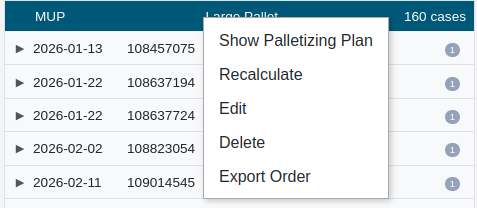
Right-clicking any child row opens the context menu:
| Menu Item | Description |
|---|---|
| Show Palletizing Plan | Navigates to the Palletizing Plans page for the selected order |
| Recalculate | Triggers a new palletizing calculation for the selected order (e.g. after master data changes) |
| Edit | Opens the Edit Order dialog |
| Delete | Permanently deletes the selected order after confirmation |
| Export Order | Downloads the selected order as an Excel file |
The exported Excel file contains the following fields:
order_id, delivery_date, pallet_type_no, article_id, pickzone_id, case_quantity, sscc
Order Lines Table
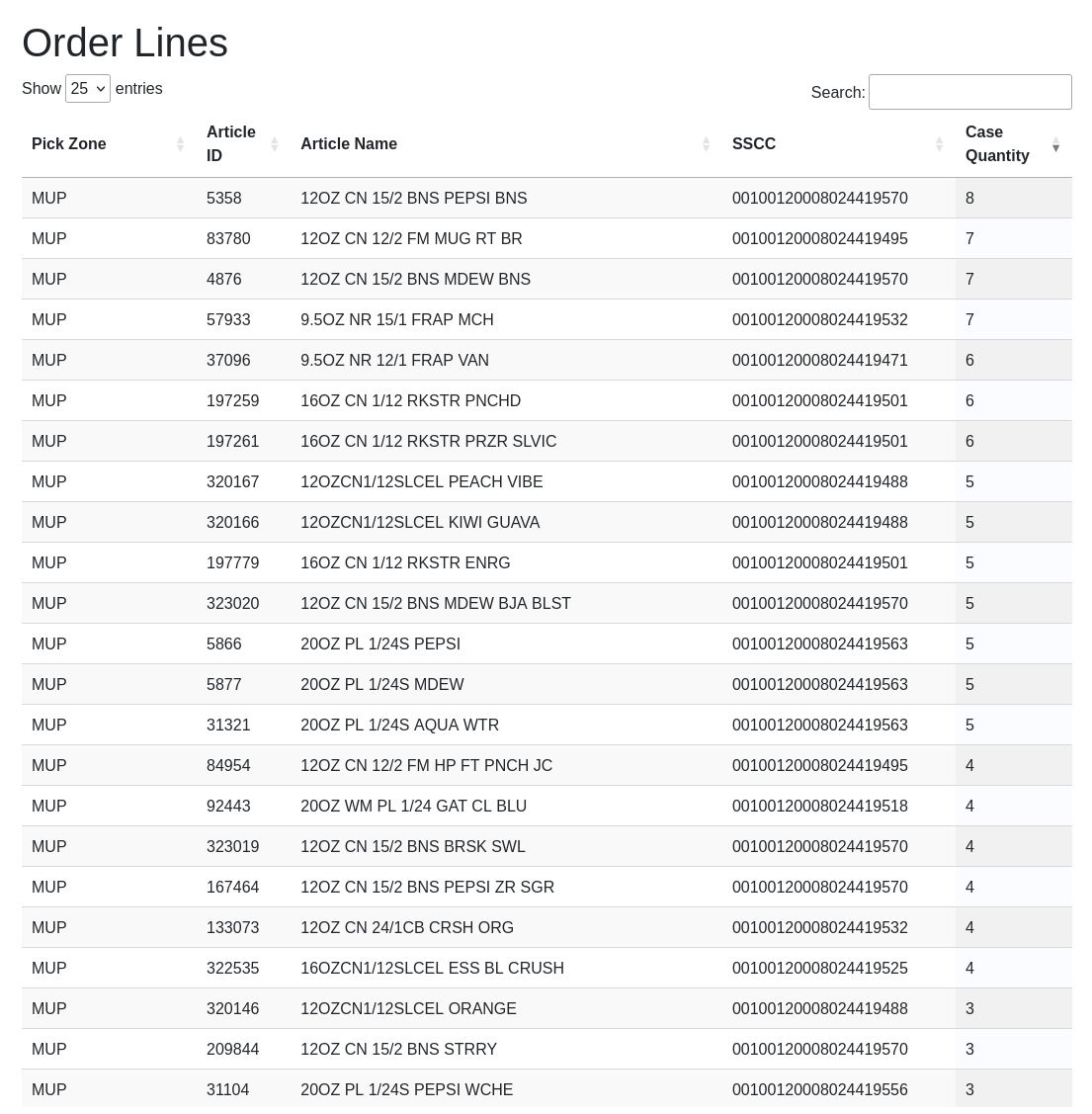
After selecting a child row, the corresponding order lines are shown in the right panel:
| Column | Description |
|---|---|
| Pick Zone | Name of the pick zone where this article is picked |
| Article ID | Unique identifier of the article |
| Article Name | Article name as defined in the SKU Master |
| SSCC | Serial Shipping Container Code — identifies the target pallet for this line |
| Case Quantity | Number of ordered cases of this article |
Add Order
A new order can be created via the Add Order button in the action bar at the top of the page.
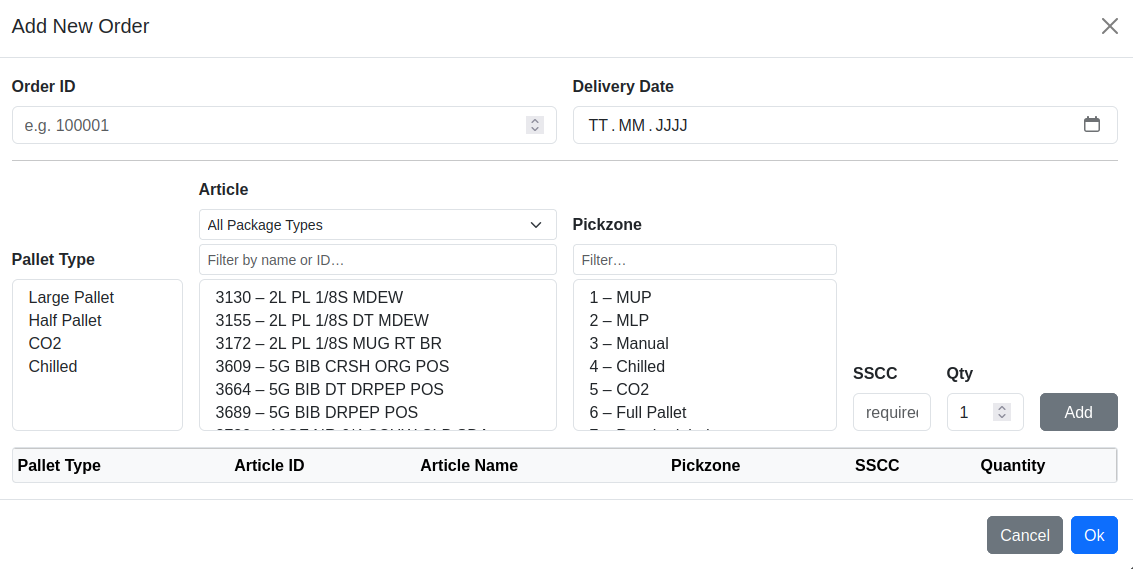
The dialog contains two sections: order header and line item entry.
Order Header
| Field | Description |
|---|---|
| Order ID | Unique numeric identifier for the order |
| Delivery Date | Delivery date of the order |
Line Item Entry
Each order line is added individually using the following controls:
| Control | Description |
|---|---|
| Pallet Type | Listbox — select the pallet type for this line item |
| Package Type filter | Dropdown — filters the Article listbox by package type |
| Article filter | Free-text field — filters the Article listbox by name or ID |
| Article | Listbox — select the article to add |
| Pickzone filter | Free-text field — filters the Pickzone listbox |
| Pickzone | Listbox — select the pick zone where this article is picked |
| SSCC | Serial Shipping Container Code — required for every line item; groups items onto the same pallet |
| Qty | Number of cases to pick / palletize |
| Add | Adds the configured line to the items table below |
After clicking Add, the item appears in the items table at the bottom of the dialog:
| Column | Description |
|---|---|
| Pallet Type | Pallet type for this line |
| Article ID | Article identifier |
| Article Name | Article name |
| Pickzone | Pick zone name |
| SSCC | Editable inline — change the SSCC for this line |
| Quantity | Editable inline — adjust the case quantity |
| ✕ | Removes this line from the order |
Items sharing the same SSCC are grouped onto the same pallet. SSCC is mandatory — the dialog will not save without an SSCC on every line.
Confirm with Save Order or abort with Cancel.
Edit Order
An existing order can be modified via right-click → Edit in the order list context menu.
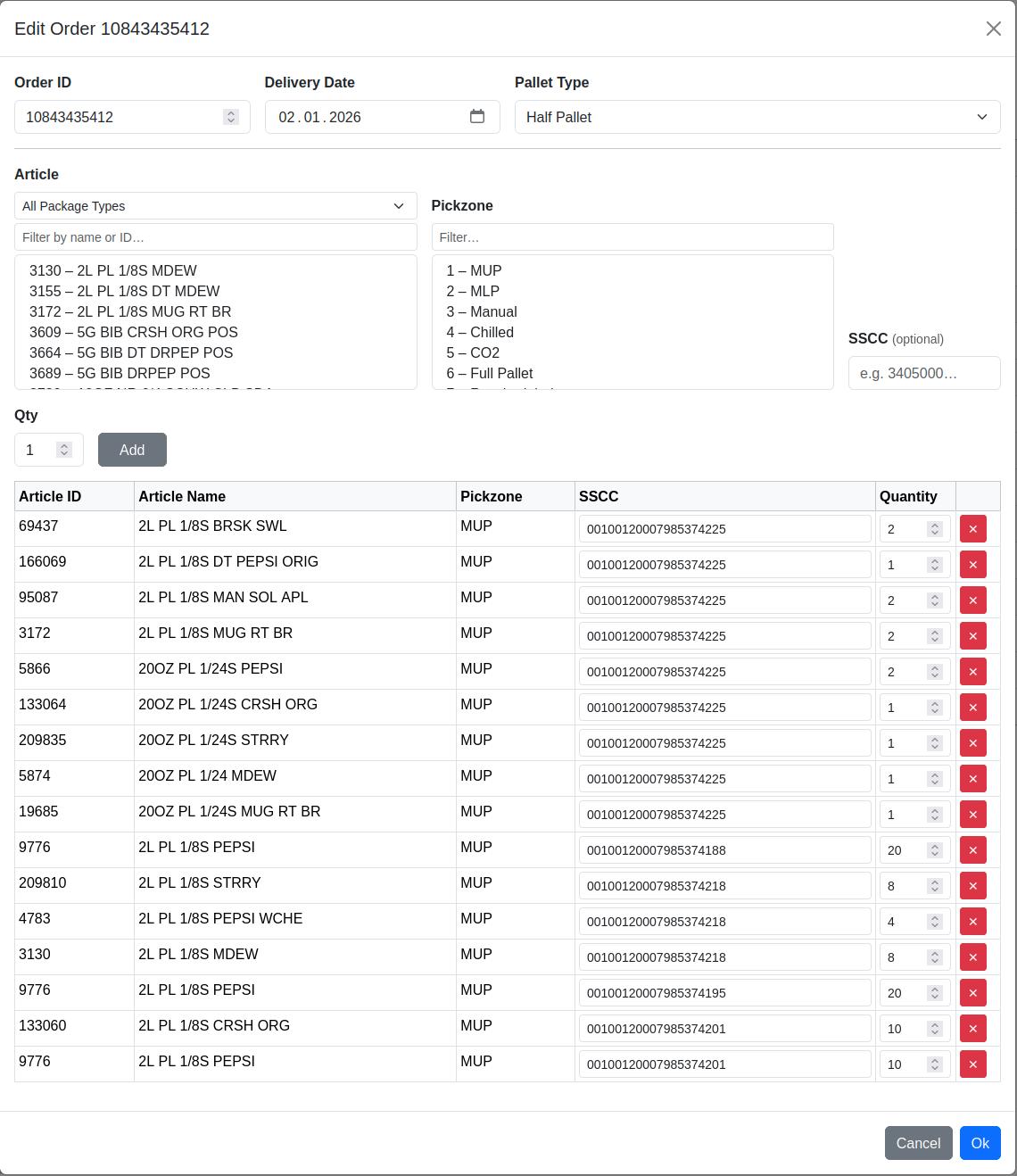
The same dialog and controls as Add Order are used (title Edit Order). The Order ID field is read-only in edit mode. All existing order lines are pre-loaded into the items table and can be modified, deleted, or added to.
Saving an edited order deletes the original and recreates it with the updated data.
Actions
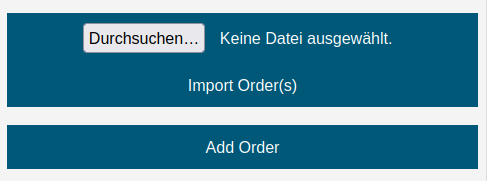
The action bar at the top of the page contains the following controls:
| Control | Description |
|---|---|
| File input | Select an Excel file (.xlsx) to be imported |
| Import Order(s) | Imports one or more orders from the selected Excel file |
| Add Order | Opens the Add Order dialog to create a new order manually |
The import Excel file must contain the following columns as headers in the first row:
| Column | Format / Notes |
|---|---|
| order_id | Unique order identifier (integer) |
| delivery_date | Date in YYYY-MM-DD format |
| pallet_type_no | Must match an existing pallet type |
| article_id | Must match an existing article |
| pickzone_id | Must match an existing pick zone |
| case_quantity | Integer number of cases |
| sscc | Serial Shipping Container Code — required for every row |
Once an order has been created or imported, the palletizing calculation can be triggered via Palletizing Plans.
Note: The Import, Add Order, Edit, Delete, and Recalculate functions are only available to users with the Editor or Administrator role. Users with read-only access see these controls greyed out and disabled ("Edit permission required").