Master Data Stacking Matrix
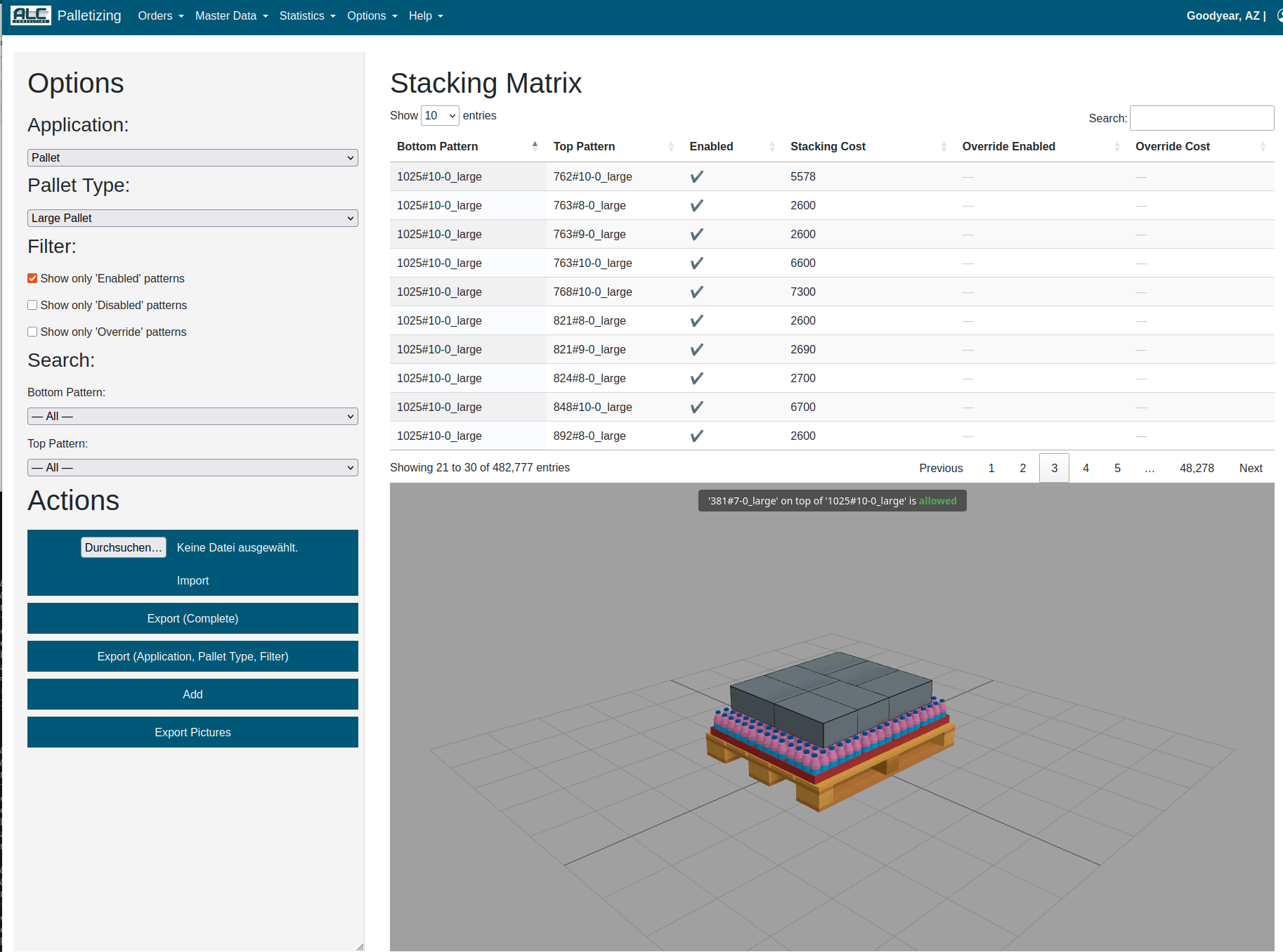
The Stacking Matrix defines which layer pattern combinations are allowed when building multi-layer pallets, and assigns a cost value to each combination that the optimization algorithm uses to prefer or avoid specific stackings.
Each entry in the Stacking Matrix represents one bottom–top pattern pair and stores:
| Parameter | Description |
|---|---|
| identifier | Unique internal identifier |
| application | Pallet — defines which layer pattern can be stacked on top of another layer pattern; TML — filters which package types may appear on a Top Mixed Layer |
| pallet_no | The pallet type this entry applies to |
| bottom_pattern | Pattern name of the bottom layer (Application = Pallet) or package ID of the bottom package (Application = TML) |
| top_pattern | Pattern name of the top layer (Application = Pallet) or package ID of the top package (Application = TML) |
| enabled | True if this stacking combination is allowed; False if it is forbidden |
| stacking_cost | Cost value used by the optimization algorithm — lower cost = preferred combination |
Override Values
When a stacking cost is manually set (rather than auto-calculated), it is flagged as overridden. The table marks overridden entries in the Override Enabled and Override Cost columns so that manual edits are distinguishable from automatically generated values.
The following examples show stacking matrix visualisations:
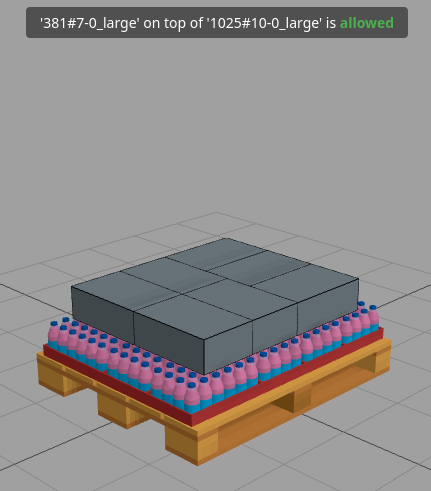 Stacking Matrix Example 1 |
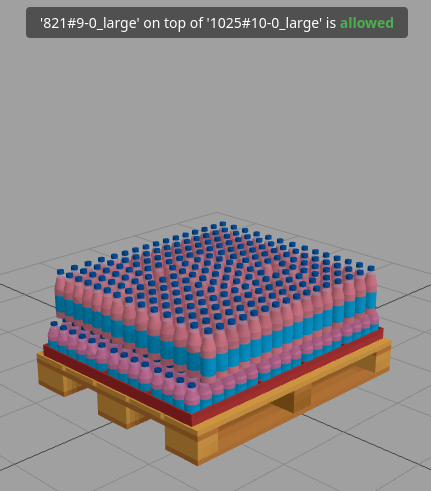 Stacking Matrix Example 2 |
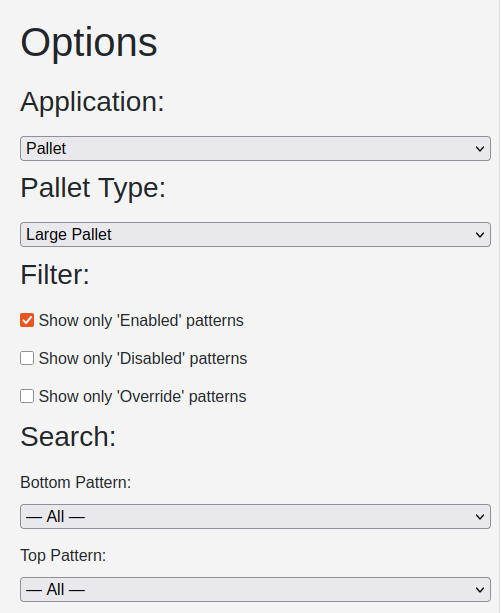
Options
| Control | Description |
|---|---|
| Application | Pallet — layer-on-layer stacking rules; TML — Top Mixed Layer package type rules |
| Pallet Type | Filters the matrix to the selected pallet type |
Filter
| Control | Description |
|---|---|
| Show only 'Enabled' patterns | Show only combinations where Enabled = True (default on; mutually exclusive with Disabled) |
| Show only 'Disabled' patterns | Show only combinations where Enabled = False (mutually exclusive with Enabled) |
| Show only 'Override' patterns | Show only combinations where the stacking cost has been manually overridden |
| Bottom Pattern | Dropdown to filter the table to a specific bottom pattern |
| Top Pattern | Dropdown to filter the table to a specific top pattern |
Note: When the page is opened from the inspection of the Pallet Review page, the pallet type as well as the bottom and the top pattern of the selected matrix cell are preselected automatically.
Stacking Matrix Table
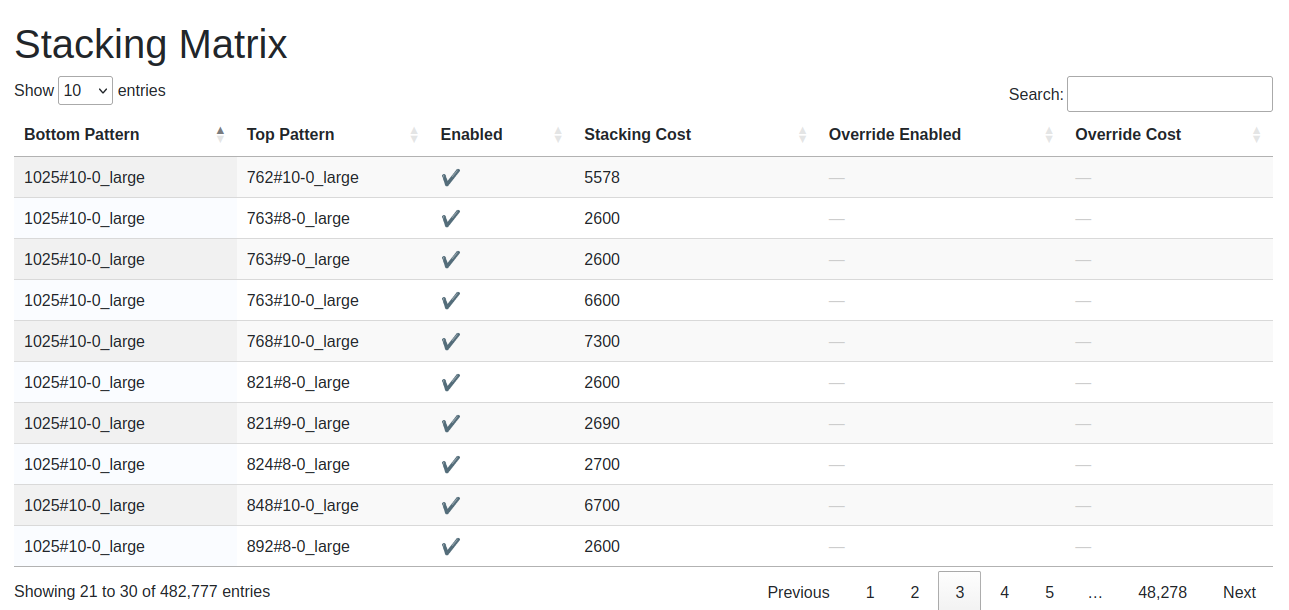
The table displays all stacking matrix entries matching the current Options and Filter settings. Clicking any row renders an interactive 3D stacking pair preview below the table.
| Column | Description |
|---|---|
| Bottom Pattern | Name of the bottom layer pattern (or package ID for TML) |
| Top Pattern | Name of the top layer pattern (or package ID for TML) |
| Enabled | ✔ (green) = combination allowed; ✗ (red) = combination forbidden |
| Stacking Cost | Cost value used by the optimizer |
| Override Enabled | ✔ (orange) = the enabled flag was manually set; — = auto-generated value |
| Override Cost | ✔ (orange) = the stacking cost was manually overridden; — = auto-calculated value |
Context Sensitive Menu
Right-clicking any row opens the context menu:
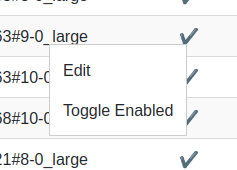
| Menu Item | Description |
|---|---|
| Edit | Opens the Edit Stacking Matrix Entry dialog to modify the selected entry |
| Toggle Enabled | Inverts the enabled flag of the selected entry (allowed ↔ forbidden) |
Add / Edit Stacking Matrix Entry
New entries can be created via the Add Stacking Matrix Entry button in the action bar at the top of the page. Existing entries can be modified via right-click → Edit in the table.
| Field | Description |
|---|---|
| Application | Pallet or TML (pre-filled from the current Options selection) |
| Pallet Type | The pallet type this entry applies to (pre-filled from the current Options selection) |
| Bottom Pattern | Dropdown of available pattern names (or package IDs for TML) for the selected application and pallet type |
| Top Pattern | Dropdown of available pattern names (or package IDs for TML) for the selected application and pallet type |
| Enabled | Check to allow this stacking combination; uncheck to forbid it |
| Stacking Cost | Cost value for the optimizer. Leave empty to use the auto-calculated value |
Confirm with Save or abort with Cancel.
Note: If the Stacking Cost is left empty or matches the auto-calculated value, the entry is not flagged as overridden. If a custom value is entered and differs from the original, it is stored as an override and highlighted in the table.
Actions
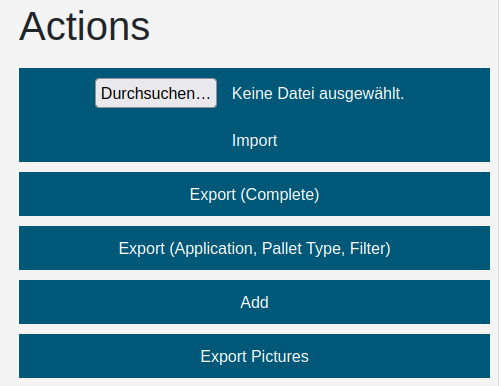
| Control | Description |
|---|---|
| File input | Select an Excel file (.xlsx) to be imported |
| Delete existing data before import | If this switch is enabled, all existing records are deleted before the file is imported. A confirmation dialog must be acknowledged. If the import fails, the previous data is restored automatically. If the switch is off, the imported records are added to / merged with the existing data |
| Import Stacking Matrix | Imports stacking matrix entries from the selected Excel file |
| Export Complete | Exports the entire stacking matrix for all applications and pallet types as an Excel file |
| Export Selected | Exports only the entries matching the current Options and Filter settings as an Excel file |
| Add Stacking Matrix Entry | Opens the Add Stacking Matrix Entry dialog to create a new entry |
| Export Pictures | Exports a PNG image of the 3D stacking pair preview for each entry visible on the current table page |
Note: The Import, Add, Edit, and Toggle Enabled functions are only available to users with the Editor or Administrator role. Users with read-only access see these controls greyed out and disabled ("Edit permission required").