Master Data Pickzone Master
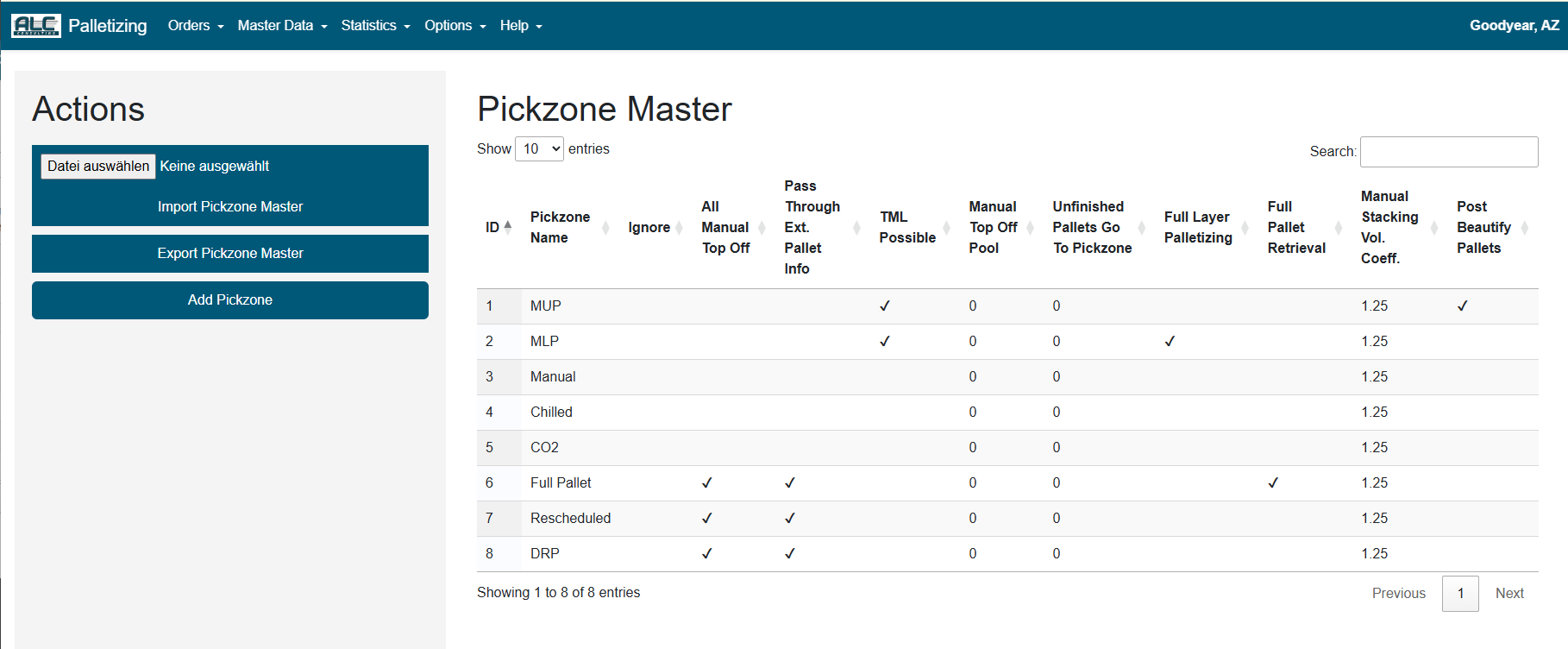
The ALC palletizing software supports orders that are palletized across different areas, called pick zones.
Each order line carries a pickzone_id that tells the algorithm how to handle the corresponding article.
Typical pick zones are:
| Pick Zone | Description |
|---|---|
| MLP | Manual Layer Palletizing (e.g. with a fork lift) |
| ALP | Automated Layer Palletizing (e.g. with a robot) |
| MUP / MCP | Manual Unit (Case) Palletizing (e.g. at a pick station or onto a pallet) |
| AUP / ACP | Automated Unit (Case) Palletizing (e.g. with an articulated robot or a layer palletizing system) |
| Manual | Manual palletizing of other articles (e.g. cups and lids) |
| Chilled | Manual palletizing of chilled articles |
| CO2 | Manual palletizing of CO2 tanks |
| Full Pallet | Manual or automated retrieval of a full pallet of one article from storage |
| Rescheduled | Manual or automated retrieval of an already picked pallet that was rescheduled for a later delivery date |
| DRP | Manual or automated retrieval of display ready pallets from storage |
Orders are built by visiting pick zones in a predetermined sequence. A possible material flow is shown below:
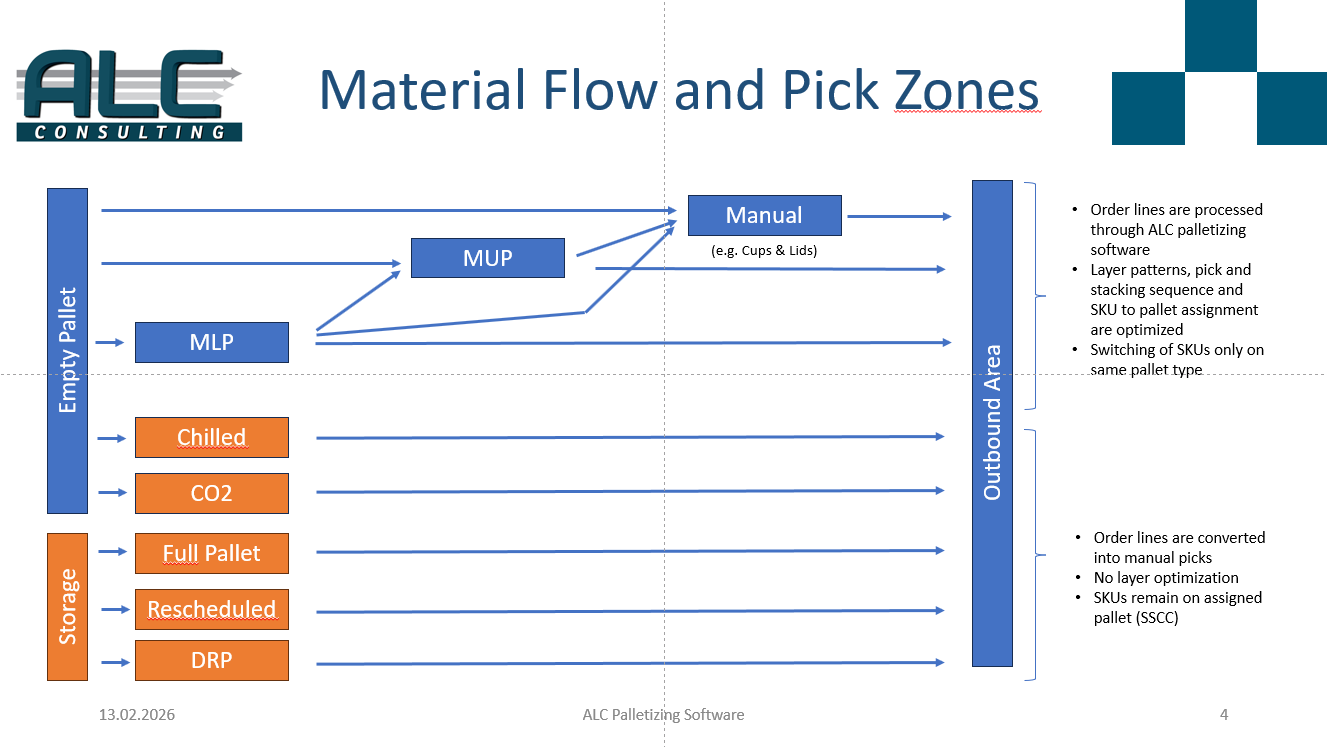
- A pallet can start in "MLP" to receive base layers, continue to "MUP" for further articles, and finish in "Manual".
- A pallet can start directly in "MUP" and be finished without additional zones.
- The palletizing software only calculates pallets in the allowed zone sequence — no pallet may start in "Manual" and continue to "MUP" or "MLP".
- Pallets with "Chilled" or "CO2" articles are always processed in their separate pick zone and not combined with others.
- "Full Pallet", "Rescheduled" and "DRP" are always pallet retrieval missions.
The core parameters of a pick zone are:
| Parameter | Description |
|---|---|
| Pickzone ID | Unique pick zone identifier |
| Pickzone Name | Pick zone name |
| Ignore | If checked, this pick zone is ignored during palletizing |
| All Manual Top Off | If checked, all units in this pick zone are treated as manual top-off products |
| Pass Through External Pallet Information | If checked, all units belonging to a pallet are passed through as-is without being considered in the palletizing process |
| TML Possible | If checked, a Top Mixed Layer can be placed on top of any layer below in this pick zone |
| Manual Top Off Pool | Not used yet |
| Unfinished Pallets Go To Pickzone | Not used yet |
| Full Layer Palletizing | If checked, this pick zone palletizes full layers (e.g. with a fork lift or robot) |
| Full Pallet Retrieval | If checked, this pick zone retrieves full pallets from storage (e.g. with a fork lift or AGV) |
| Manual Stacking Volume Coefficient | Filling ratio describing how well remaining articles can be placed onto the pallet (default: 1.5) |
| Post Beautify Pallets | If checked, pallets are optimised after stacking |
Pickzone Master Table
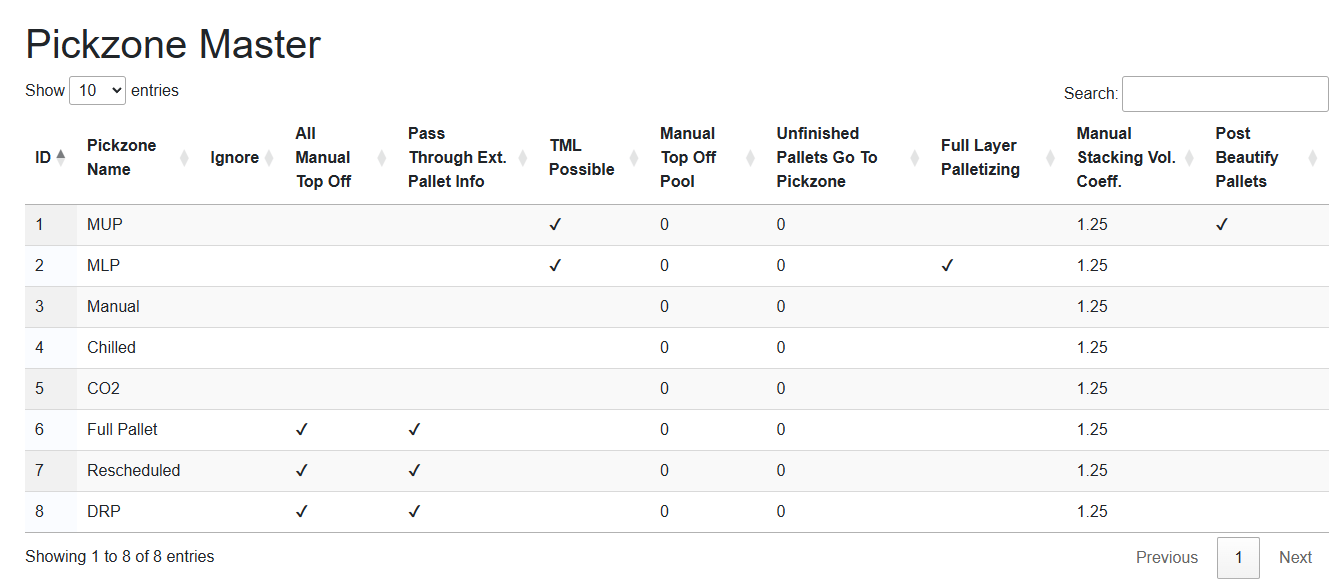
| Column | Description |
|---|---|
| ID | Unique pick zone identifier |
| Pickzone Name | Pick zone name |
| Ignore | ✔ = pick zone is ignored |
| All Manual Top Off | ✔ = all units are manual top-off |
| Pass Through Ext. Pallet Info | ✔ = units are passed through without palletizing |
| TML Possible | ✔ = Top Mixed Layer is allowed on top |
| Manual Top Off Pool | Pool identifier (if configured) |
| Unfinished Pallets Go To Pickzone | Target pick zone for unfinished pallets (if configured) |
| Full Layer Palletizing | ✔ = full-layer palletizing |
| Full Pallet Retrieval | ✔ = full pallet retrieval mode |
| Manual Stacking Vol. Coeff. | Volume filling coefficient |
| Post Beautify Pallets | ✔ = post-stacking optimisation enabled |
| Show ... entries | Change this value to display more or fewer records in the table |
| Search | Filter the list by typing any string into this field |
| Showing x to y of z | Indicates which part of the (filtered) list is currently displayed |
| Previous / Next | Page through the list. The current position is shown as "Page n of m" |
Context Sensitive Menu
Right-clicking any row opens the context menu:
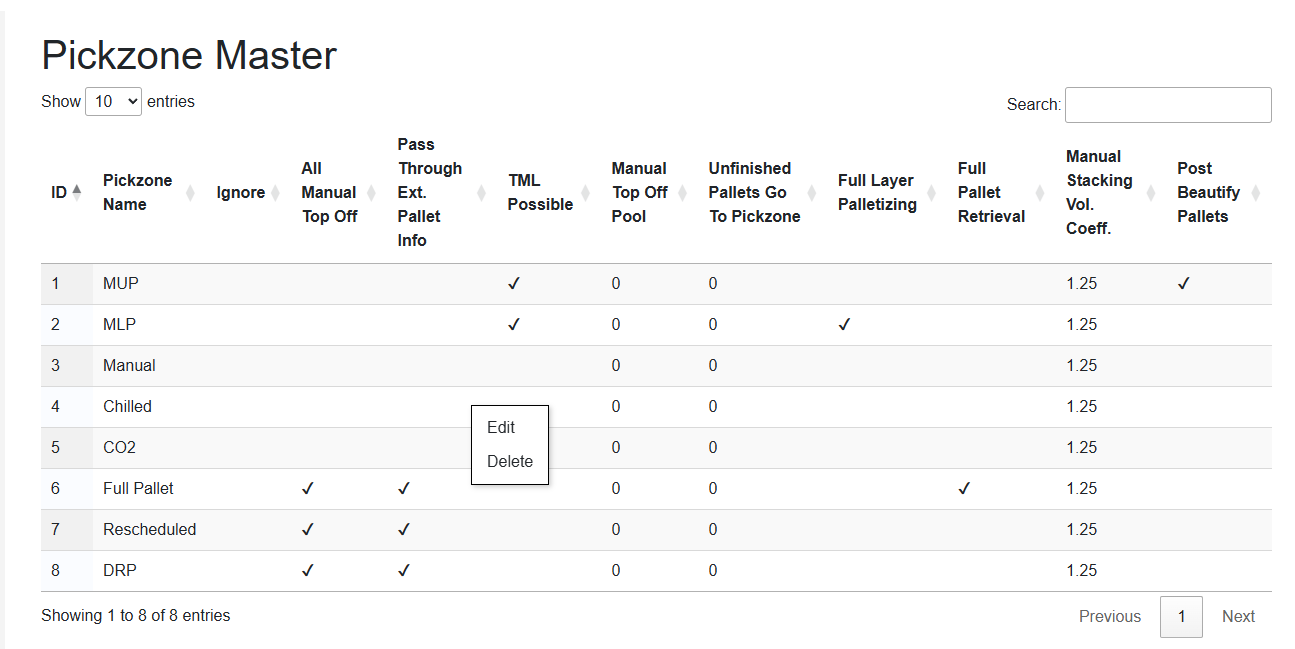
| Menu Item | Description |
|---|---|
| Edit | Opens the Edit Pickzone dialog to modify the selected pick zone |
| Delete | Permanently deletes the selected pick zone after confirmation |
Add Pickzone
A new pick zone can be created via the Add Pickzone button in the action bar at the top of the page.
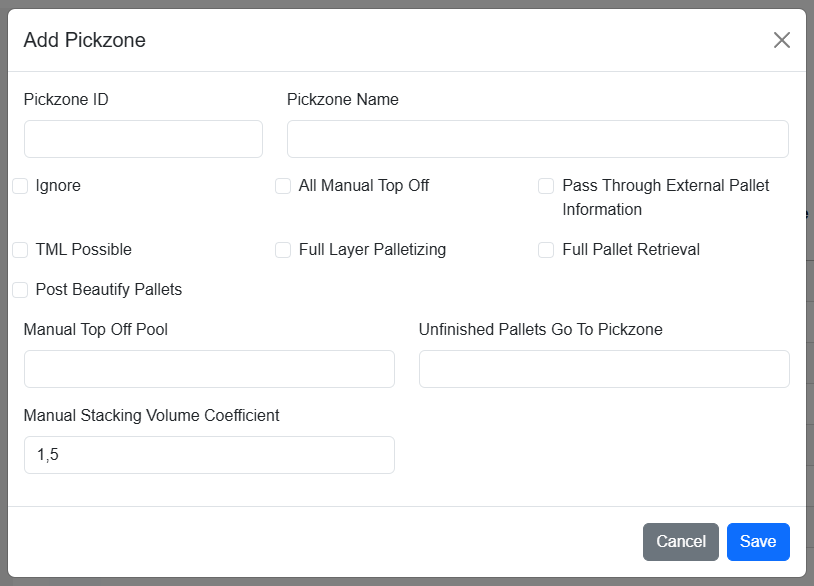
| Field | Description |
|---|---|
| Pickzone ID | Unique pick zone identifier |
| Pickzone Name | Pick zone name |
| Ignore | Check to exclude this pick zone from palletizing |
| All Manual Top Off | Check if all units in this zone are manual top-off products |
| Pass Through External Pallet Information | Check to pass through units without including them in the palletizing process |
| TML Possible | Check to allow a Top Mixed Layer on top of layers from this pick zone |
| Full Layer Palletizing | Check if this zone uses full-layer palletizing (fork lift or robot) |
| Full Pallet Retrieval | Check if this zone retrieves complete pallets from storage |
| Post Beautify Pallets | Check to enable post-stacking pallet optimisation |
| Manual Top Off Pool | Pool identifier (optional, not used yet) |
| Unfinished Pallets Go To Pickzone | Target pick zone for unfinished pallets (optional, not used yet) |
| Manual Stacking Volume Coefficient | Filling ratio for manual stacking (default: 1.5) |
Confirm with Save or abort with Cancel.
Edit Pickzone
An existing pick zone can be modified via right-click → Edit in the table, or by double-clicking the corresponding table row.
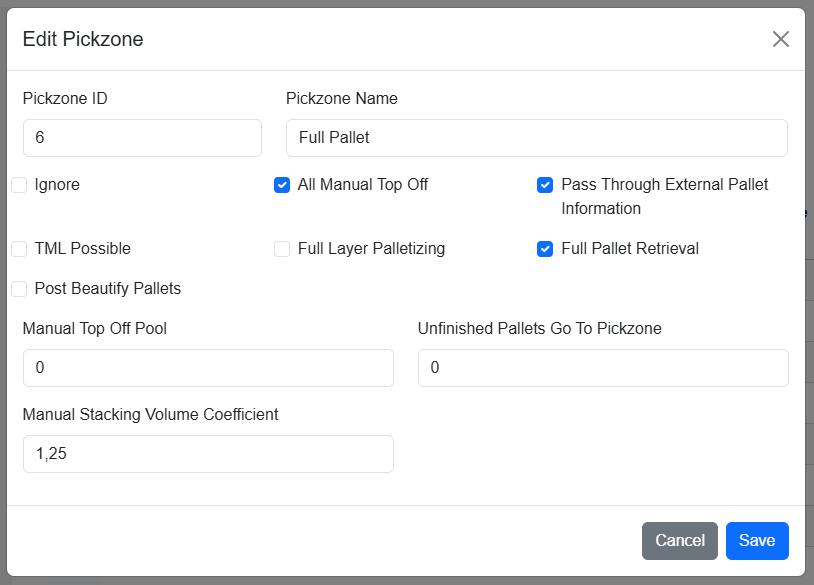
The same dialog and fields as Add Pickzone are used, with the existing values pre-filled.
Actions
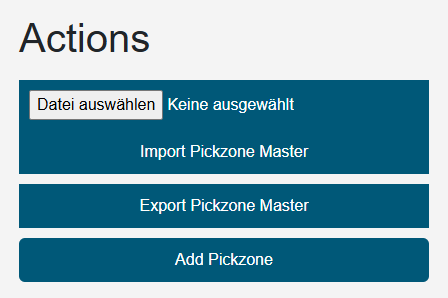
The action bar above the table contains the following controls:
| Control | Description |
|---|---|
| File input | Select an Excel file (.xlsx) to be imported |
| Delete existing data before import | If this switch is enabled, all existing records are deleted before the file is imported. A confirmation dialog must be acknowledged. If the import fails, the previous data is restored automatically. If the switch is off, the imported records are added to / merged with the existing data |
| Import Pickzone Master | Imports pick zones from the selected Excel file |
| Export Pickzone Master | Creates an Excel file with all stored pick zones and provides it as download |
| Add Pickzone | Opens the Add Pickzone dialog to create a new pick zone |
Note: The Import, Add Pickzone, Edit, and Delete functions are only available to users with the Editor or Administrator role. Users with read-only access see these controls greyed out and disabled ("Edit permission required").