Master Data – Layer Patterns
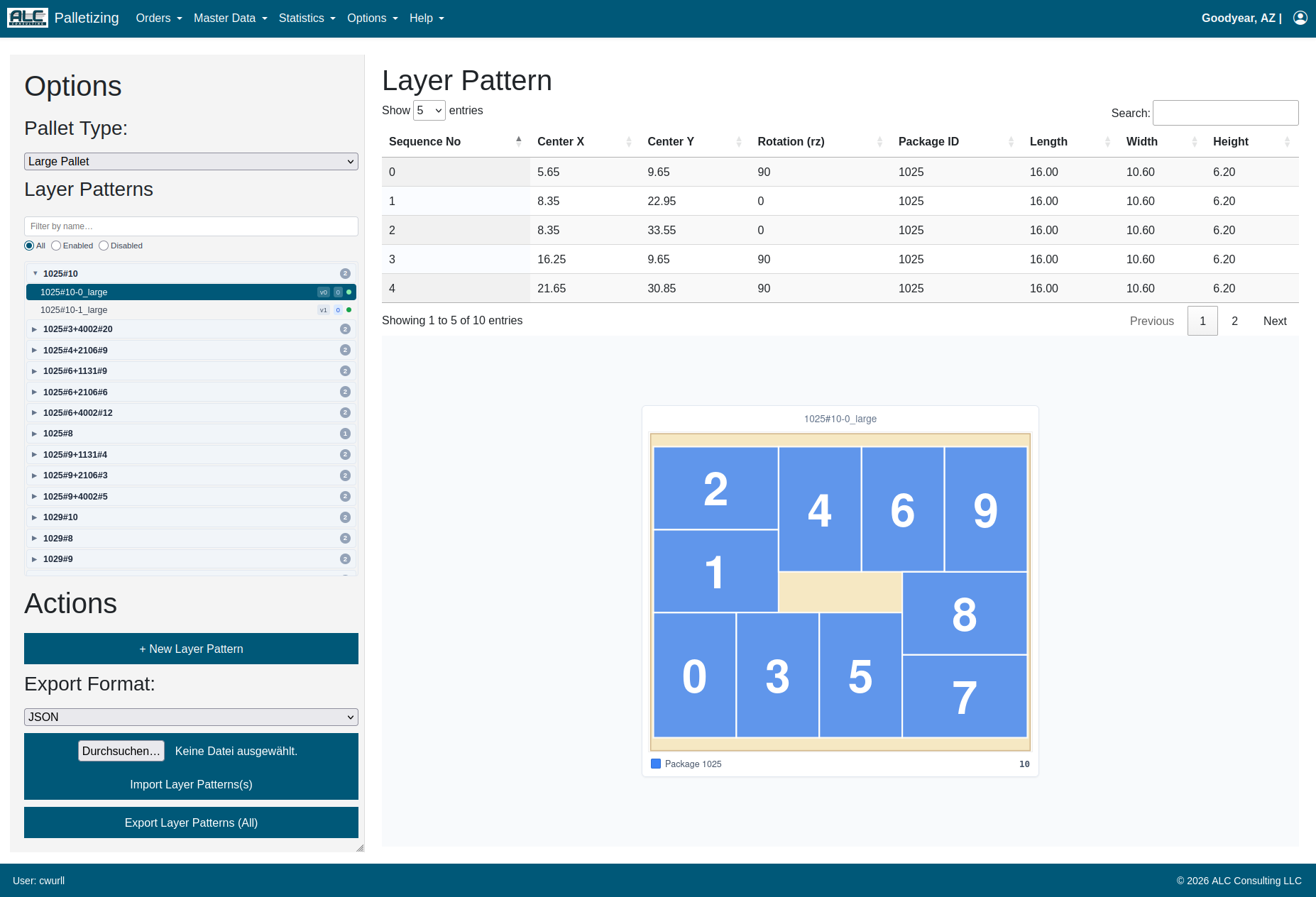
The ALC palletizing software calculates optimal stacking patterns for orders that consist of a set of articles. Every article is linked to one Package Type, which describes its physical dimensions. For every Package Type and Pallet Type, at least one layer pattern must be defined. A package type may have more than one layer pattern (variants).
The parameters of a Layer Pattern are:
| Field | Type | Description |
|---|---|---|
| identifier | int | Unique internal identifier |
| pattern_name | str | Unique name of the layer pattern |
| pallet_no | int | Unique ID of the pallet type this pattern belongs to |
| enabled | bool | Whether the pattern can be used during palletizing |
| variant | int | Priority value when multiple patterns exist for the same package type (0 = highest) |
| external_id | int | Unique number used by the external palletizing machine |
| parent_id | int (optional) | Link to a parent pattern – used to model sub-patterns |
| items | list[PatternItem] | List of items placed on the pallet layer |
The parameters of a Layer Pattern Item are:
| Field | Type | Description |
|---|---|---|
| identifier | int | Unique internal identifier |
| sequence_no | int | Build sequence in which this item must be placed on the layer |
| center_x | int | Center X-coordinate of the item on the layer (mm) |
| center_y | int | Center Y-coordinate of the item on the layer (mm) |
| rz | int | 0 = portrait (unit_length along pallet length); 90 = landscape (unit_width along pallet length) |
| package_id | int | Link to the Package Type of this item |
All position values (center_x, center_y) are stored in mm. The rotation rz is stored in degrees.
In the following table, different layer pattern types are shown.
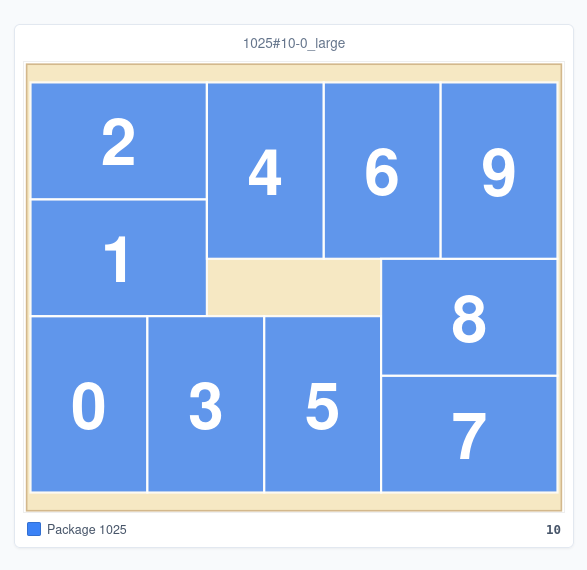 Homogeneous Layer Pattern (single package type) |
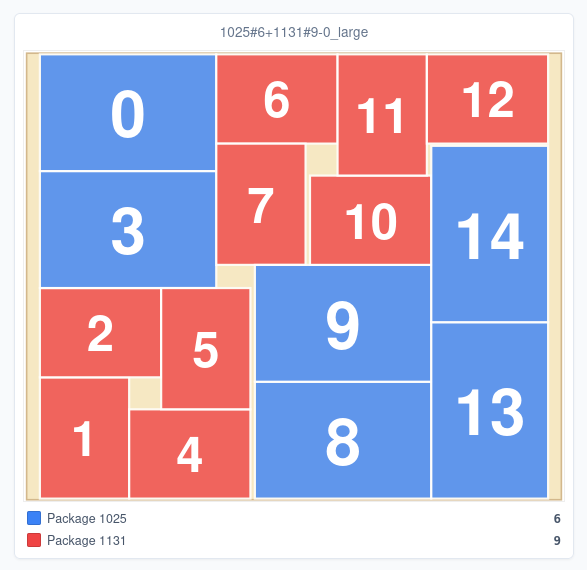 Hybrid Layer Pattern (two package types) |
Options
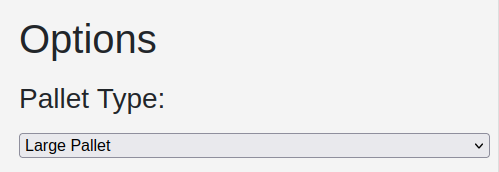
The pallet type selector is located at the top of the left panel of the workspace, together with the filter controls of the Pattern Tree, which are described in the section Filter Bar below.
| Field | Description |
|---|---|
| Pallet Type | Select which pallet type's patterns are displayed in the pattern tree |
Pattern Tree
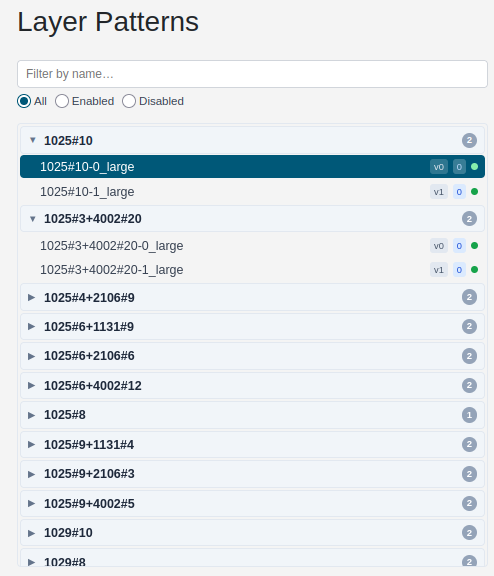
The workspace is split into a left panel containing the Pallet Type selector and the Pattern Tree, and a right area showing the pattern details and the 3D visualization. After selecting a pallet type, all layer patterns for that pallet are displayed in the Pattern Tree.
Filter Bar
At the top of the Pattern Tree, a filter bar allows quick narrowing of the list:
| Control | Description |
|---|---|
| Search field | Filter patterns by name (case-insensitive, live filter) |
| All | Show all patterns regardless of enabled state |
| Enabled | Show only patterns that are enabled |
| Disabled | Show only patterns that are disabled |
Tree Structure
Patterns are grouped by their base name. Each group can be collapsed or expanded by clicking the group header (▶ / ▼). The badge on the group header shows the total number of patterns in that group.
Each pattern entry in the tree displays:
| Element | Description |
|---|---|
| Pattern name | Full name of the layer pattern |
v0, v1 … |
Variant chip – the variant number (lower = higher priority) |
| Blue chip | External ID as configured for the palletizing machine |
| Green dot | Pattern is enabled |
| Grey dot | Pattern is disabled |
Clicking a pattern entry selects it and loads its items into the detail table and visualization below.
Context Menu
Right-clicking any pattern entry opens a context menu:
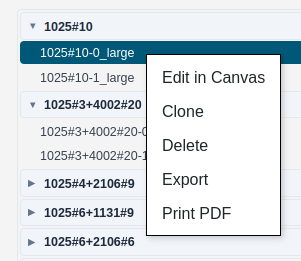
| Menu Item | Description |
|---|---|
| Edit in Canvas | Opens the Canvas Pattern Editor to interactively edit the selected pattern |
| Clone | Creates a copy of the pattern with a new name (suffix -copy), disabled by default |
| Delete | Permanently deletes the selected pattern after confirmation |
| Export | Exports the selected pattern as a file (format selected in the Actions section) |
| Print PDF | Generates and downloads a PDF report for the selected pattern |
Canvas Pattern Editor
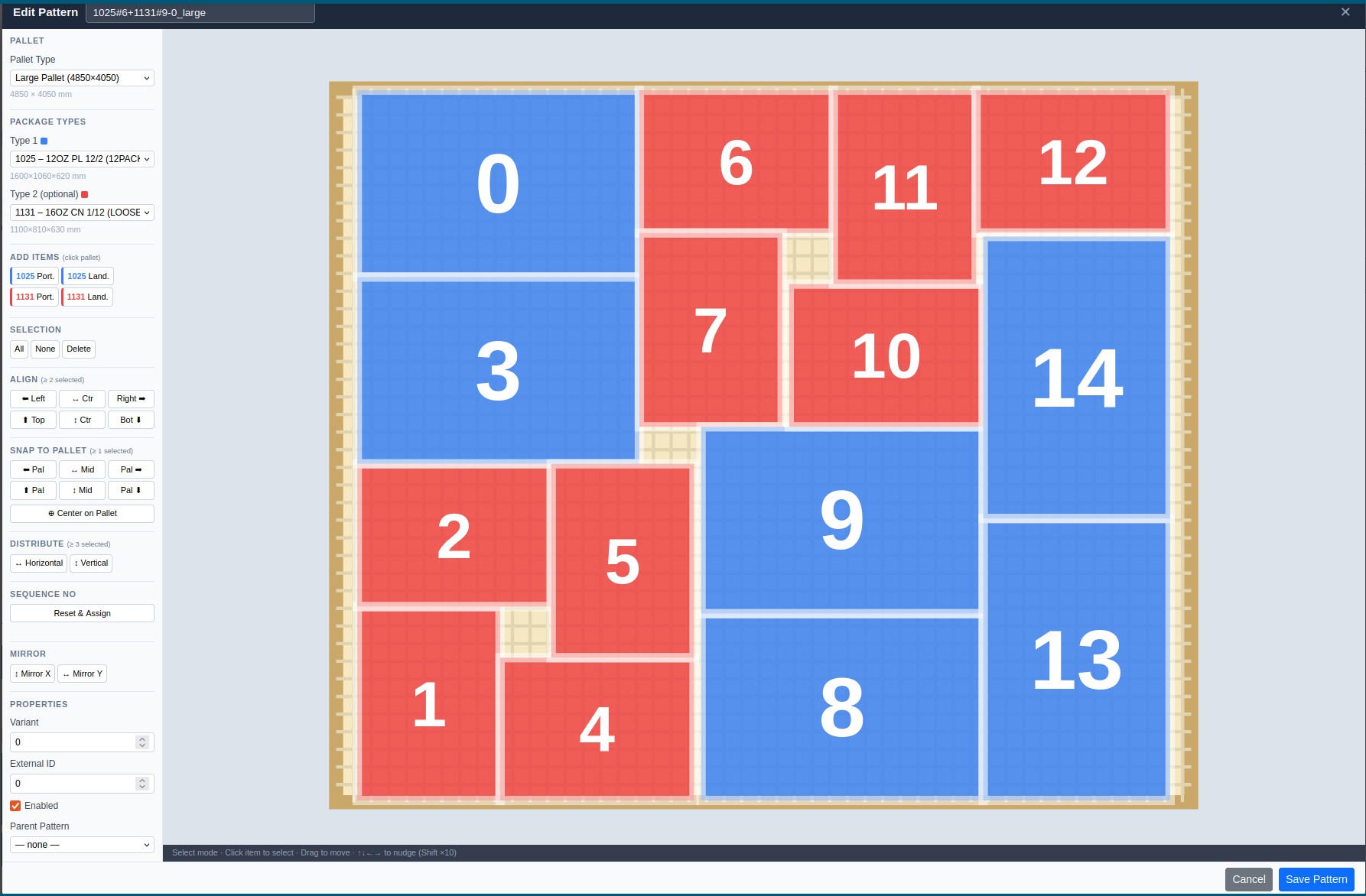
The Canvas Pattern Editor is the primary tool for creating and modifying layer patterns. It opens as a full-screen modal when you click + New Layer Pattern or use Edit in Canvas from the context menu.
Editor Header
The header bar at the top of the editor contains:
| Element | Description |
|---|---|
| Title | Shows "New Pattern" or "Edit Pattern" |
| Pattern name | Editable text field for the pattern name |
| ✕ button | Closes the editor and discards all unsaved changes |
Left Settings Panel
The left panel is divided into sections:
Pallet
| Control | Description |
|---|---|
| Pallet Type | Dropdown to select which pallet type this pattern is for |
| Dimensions | Read-only info showing the selected pallet's L × W in mm |
Package Types
Up to two package types can be defined per pattern (for hybrid patterns). Type 1 is drawn in blue; Type 2 is drawn in red.
| Control | Description |
|---|---|
| Type 1 | Mandatory – select the primary package type |
| Type 2 | Optional – select a second package type for hybrid patterns |
| Dimensions | Read-only info showing the selected package's L × W × H in mm |
Add Items
Once package types are selected, add buttons appear automatically. Each package type provides two buttons:
| Button | Description |
|---|---|
ID Port. |
Activate add mode for this package in portrait orientation (rz = 0) |
ID Land. |
Activate add mode for this package in landscape orientation (rz = 90) |
When an add button is active (highlighted blue), the canvas switches to Add Mode: - Move the mouse over the pallet to see a ghost preview of the item - Click on the pallet surface to place the item - Items cannot be placed where they would overlap an existing item - Press ESC or click the active button again to return to Select Mode
Selection
| Button | Description |
|---|---|
| All | Selects all items on the canvas |
| None | Deselects all items |
| Delete | Deletes all currently selected items (also: Delete / Backspace key) |
Align (≥ 2 items selected)
Aligns the edges or centers of the selected items relative to each other:
| Button | Description |
|---|---|
| ⬅ Left | Align all left edges to the leftmost item |
| ↔ Ctr | Center horizontally (X axis) |
| Right ➡ | Align all right edges to the rightmost item |
| ⬆ Top | Align all top edges to the topmost item |
| ↕ Ctr | Center vertically (Y axis) |
| Bot ⬇ | Align all bottom edges to the lowest item |
Snap to Pallet (≥ 1 item selected)
Moves the selected group of items to the edge or center of the pallet. The relative positions between selected items are preserved.
| Button | Description |
|---|---|
| ⬅ Pal | Snap left edge of group to pallet left edge |
| ↔ Mid | Center group horizontally on pallet |
| Pal ➡ | Snap right edge of group to pallet right edge |
| ⬆ Pal | Snap top edge of group to pallet top edge |
| ↕ Mid | Center group vertically on pallet |
| Pal ⬇ | Snap bottom edge of group to pallet bottom edge |
| ⊕ Center | Center group on pallet (both axes simultaneously) |
Distribute (≥ 3 items selected)
Spaces selected items evenly between the two outermost items:
| Button | Description |
|---|---|
| ↔ Horizontal | Distribute evenly along the X axis |
| ↕ Vertical | Distribute evenly along the Y axis |
Sequence No
Defines the build order in which items are placed by the palletizing machine.
| Button / Info | Description |
|---|---|
| Reset & Assign | Clears all sequence numbers and enters Sequence Mode (click items one by one to assign numbers in order) |
n / total assigned |
Progress counter shown while in Sequence Mode |
| ESC | Exits Sequence Mode |
While in Sequence Mode the assigned number is shown inside each item on the canvas. Items without a sequence number appear dimmed.
Mirror
Mirrors all items (regardless of selection) around an axis through the pallet center:
| Button | Description |
|---|---|
| ↕ Mirror X | Mirror around the X axis (flips items top ↔ bottom) |
| ↔ Mirror Y | Mirror around the Y axis (flips items left ↔ right) |
Properties
| Field | Description |
|---|---|
| Variant | Priority value (lower number = higher priority in multi-pattern setups) |
| External ID | ID used by the external palletizing machine |
| Enabled | Checkbox – uncheck to prevent this pattern from being used in calculations |
| Parent Pattern | Optional link to a parent pattern (for sub-pattern relationships) |
Canvas Area
The central SVG canvas shows the pallet surface with all pattern items placed on it.
| Visual Element | Meaning |
|---|---|
| Beige rectangle | Pallet surface |
| Light grid lines (100 mm) | Visual reference grid at 100 mm intervals |
| Blue items | Items of Package Type 1 |
| Red items | Items of Package Type 2 |
| Yellow dashed border | Item is currently selected |
| Orange border | Item overhangs the pallet edge |
| Number inside item | Assigned sequence number |
| Semi-transparent ghost | Preview of item about to be placed (Add Mode) |
Mouse interactions on the canvas:
| Interaction | Action |
|---|---|
| Click item | Select item (deselects others) |
| Ctrl + Click item | Add/remove item from selection |
| Drag selected item(s) | Move the selected group (collision prevention active) |
| Click empty pallet area | Deselect all |
| Click on pallet (Add Mode) | Place a new item |
| Arrow keys (↑ ↓ ← →) | Nudge selected items by 1 mm |
| Shift + Arrow keys | Nudge selected items by 10 mm |
| Right-click selected item | Open Push to Neighbor context menu |
Push to Neighbor context menu (right-click on canvas with items selected):
Moves the selected group as far as possible in the chosen direction until it either touches the pallet edge or an adjacent item:
| Menu Item | Description |
|---|---|
| ⬅ Push to left | Push group left until edge or neighbor |
| Push to right ➡ | Push group right until edge or neighbor |
| ⬆ Push up | Push group up until edge or neighbor |
| ⬇ Push down | Push group down until edge or neighbor |
Status Bar
The status bar at the bottom of the canvas always shows the current editor mode and available interactions.
Editor Footer
| Button | Description |
|---|---|
| Cancel | Closes the editor and discards all changes |
| Save Pattern | Validates and saves the pattern; auto-assigns any missing sequence numbers |
Pattern Items Table
The right area of the workspace shows a read-only detail table of the currently selected pattern's items:
| Column | Description |
|---|---|
| Sequence No | Build sequence number |
| Center X | X center position in mm |
| Center Y | Y center position in mm |
| Rotation (rz) | Rotation angle: 0 = portrait, 90 = landscape |
| Package ID | ID of the package type for this item |
| Length | Unit length in mm |
| Width | Unit width in mm |
| Height | Unit height in mm |
Pattern Visualization
Below the items table, the selected layer pattern is drawn as a top view on its pallet. Each unit carries its build sequence number, and the legend below the drawing lists the package types used together with the total number of units in the layer.
Actions
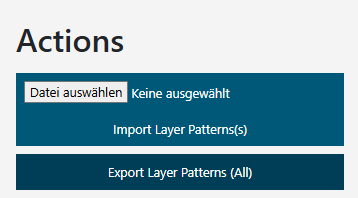
The action bar at the top of the page contains the following controls (New Layer Pattern and Import on the left, the export controls on the right):
| Control | Description |
|---|---|
| New Layer Pattern | Opens the Canvas Pattern Editor with a blank pattern |
| Format | Selects the file format for the export: JSON or Excel (.xlsx). Imports accept both formats automatically |
| Select File / Import Layer Patterns | Select a .json or .xlsx file and click Import Layer Patterns to import. The pallet type dropdown automatically switches to the imported pallet. |
| Export All Patterns | Downloads all stored layer patterns as a single file in the selected export format |