Pick Sequence
The Pick Sequence page allows you to view, create, edit, reorder, import, and delete pick sequence entries.
The Pick Sequence defines the order in which Package Types are prioritised when building pallets. Each entry assigns a priority number to a package type — the lower the number, the earlier that package type is processed. The table is always displayed sorted by priority in ascending order.
The core parameters of a pick sequence entry are:
| Parameter | Description |
|---|---|
| ID | Unique internal identifier of the pick sequence entry |
| Package ID | Link to the Package Type |
| Priority | Processing order — lower values are picked first |
Pick Sequence Table
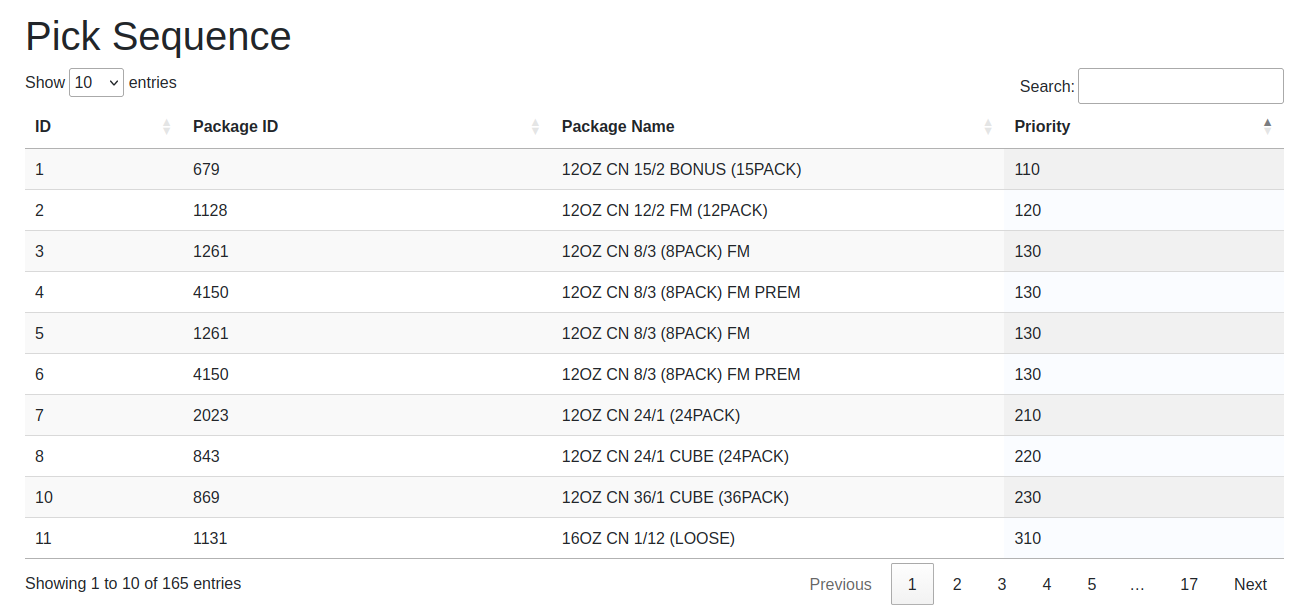
| Column | Description |
|---|---|
| ID | Unique pick sequence identifier |
| Package ID | Package type identifier |
| Package Name | Package type name (resolved from the Package Type Master) |
| Priority | Processing priority — the table is always sorted ascending by this value |
| Show ... entries | Change this value to display more or fewer records in the table |
| Search | Filter the list by typing any string into this field |
| Showing x to y of z | Indicates which part of the (filtered) list is currently displayed |
| Previous / Next | Page through the list. The current position is shown as "Page n of m" |
Context Sensitive Menu
Right-clicking any row opens the context menu:
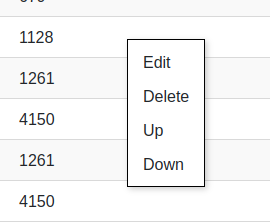
| Menu Item | Description |
|---|---|
| Edit | Opens the Edit Pick Sequence dialog to modify the selected entry |
| Delete | Permanently deletes the selected entry after confirmation |
| Up | Moves the selected entry one position up by swapping its priority with the entry above |
| Down | Moves the selected entry one position down by swapping its priority with the entry below |
Add Pick Sequence
A new entry can be created via the Add Pick Sequence button in the action bar at the top of the page.
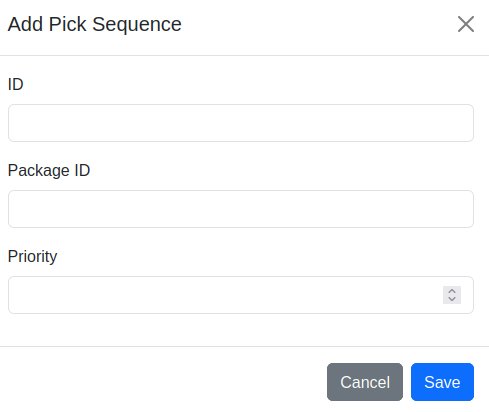
| Field | Description |
|---|---|
| ID | Unique identifier for this entry |
| Package ID | ID of the Package Type to assign |
| Priority | Priority value — lower numbers are processed first |
Confirm with Save or abort with Cancel.
Edit Pick Sequence
An existing entry can be modified via right-click → Edit in the table, or by double-clicking the corresponding table row. The same dialog and fields as Add Pick Sequence are used, with the existing values pre-filled.
Actions
The action bar above the table contains the following controls:
| Control | Description |
|---|---|
| File input | Select an Excel file (.xlsx) to be imported |
| Delete existing data before import | If this switch is enabled, all existing records are deleted before the file is imported. A confirmation dialog must be acknowledged. If the import fails, the previous data is restored automatically. If the switch is off, the imported records are added to / merged with the existing data |
| Import Pick Sequence | Imports pick sequence entries from the selected Excel file |
| Export Pick Sequence | Creates an Excel file with all stored entries sorted by priority and provides it as download |
| Add Pick Sequence | Opens the Add Pick Sequence dialog to create a new entry |
| Renumber Pick Sequence | Reassigns all priority values to consecutive multiples of 10 (10, 20, 30, …) in the current order, removing any gaps between entries |
Note: The Import, Add, Edit, Delete, Up, Down, and Renumber Pick Sequence functions are only available to users with the Editor or Administrator role. Users with read-only access see these controls greyed out and disabled ("Edit permission required").
The import and export Excel file contains the following columns:
| Column | Description |
|---|---|
| pick_sequence_id | Unique pick sequence identifier (integer) |
| package_id | Package type identifier — must match an existing package type |
| package_name | Package type name (informational, not used on import) |
| priority | Priority value (integer) |